
Few things are more annoying than a “storage full” warning at the moment you need to take a photo or install an update. Most people respond by deleting apps in a panic. Both Android and iPhone already have a built-in feature that removes the apps you ignore and keeps your data, but many users have never switched it on.
What the Feature Actually Does
The feature does not delete your apps in the usual sense. It removes the app’s installation files, which is the bulk of its size, and leaves your personal data and settings in place. The icon stays on your home screen with a small cloud symbol, and tapping it downloads the app again so you can continue where you stopped.
How It Works on iPhone
Apple calls it Offload Unused Apps. When your storage runs low, the iPhone removes apps you have not opened for a while and keeps their documents and data.
To turn it on, open Settings, tap Apps, then App Store, and switch on Offload Unused Apps. On older iOS versions, look under Settings, then App Store, or under General, then iPhone Storage. If you cannot find it, use the search bar at the top of Settings and type “offload”.
You can also do it by hand. Go to Settings, General, then iPhone Storage, tap a large app you rarely use, and choose Offload App. Apple does not say how long an app must sit unused before it qualifies, so if you want certain apps to stay, open them once in a while.
How It Works on Android
Google calls it auto-archive, and it lives in the Play Store. Open the Play Store, tap your profile picture, go to Settings, then General, and switch on Automatically archive apps.
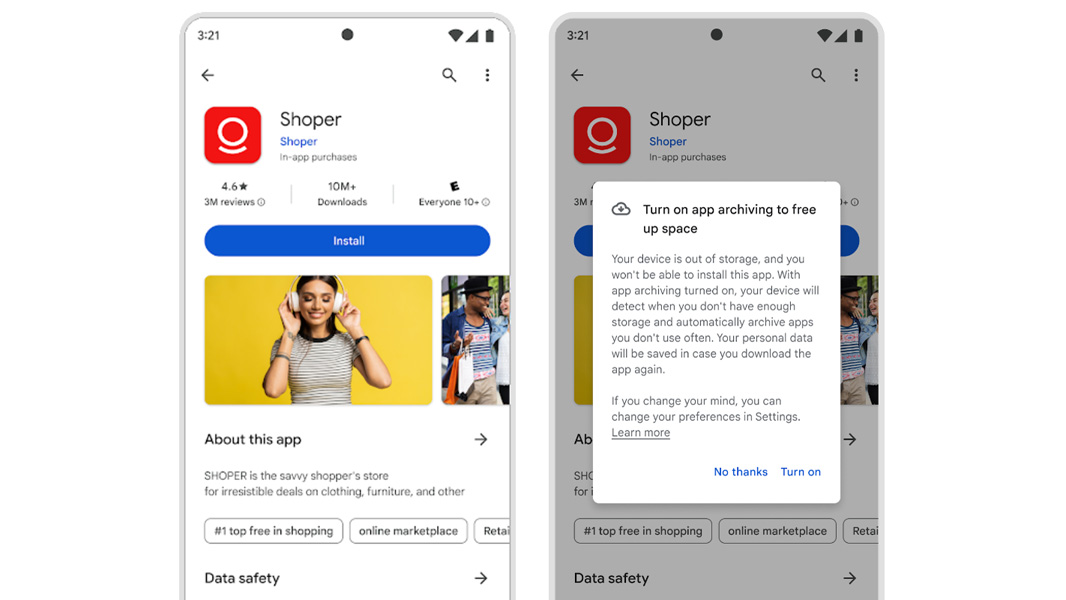
Once it is on, your phone archives apps you rarely use when storage is running low. Google says this can recover up to nearly 60 percent of an app’s size. Archived apps show a cloud icon, and you can restore one from the Play Store or from the app’s info page in Settings.
If one app should never be archived, open Settings, tap Apps, select the app, and turn off Manage app if unused. Newer Android versions also let you archive an app manually from Settings.
Things to Watch Out For
- Reinstalling uses data. Bringing back a large app over mobile data can be costly, so restore over Wi-Fi where you can.
- Availability matters. An app can only return if it is still on the store. If a developer removes it, the offloaded app may be gone for good.
- Not everything can be archived. Some system apps and certain Google components are excluded, and on Android the feature works only for apps published in Google’s newer app bundle format.
- Low storage triggers it. On both platforms, the feature mainly kicks in when space is tight, so do not expect apps to vanish on a phone with plenty of room.
Is It Worth Turning On?
For anyone with a phone that has limited storage, yes. It is a safer option than deleting apps in a hurry, because your progress, settings and files stay put. Spend two minutes switching it on today and check your storage screen next month to see how much it has saved.